Step 1: add the embed
Open the page where you want the timer and add an Embed block:
- Click on an empty line and type /embed, then press Enter.
- Paste the timer link below into the box.
- Click Embed link. The timer appears on the page and works straight away.
https://cutfold.app/focusWhat it is: a free Pomodoro timer made for Notion embeds, built by Cutfold. There is no account to create and no ads, and the page loads nothing from other sites.
Step 2: give it the right size
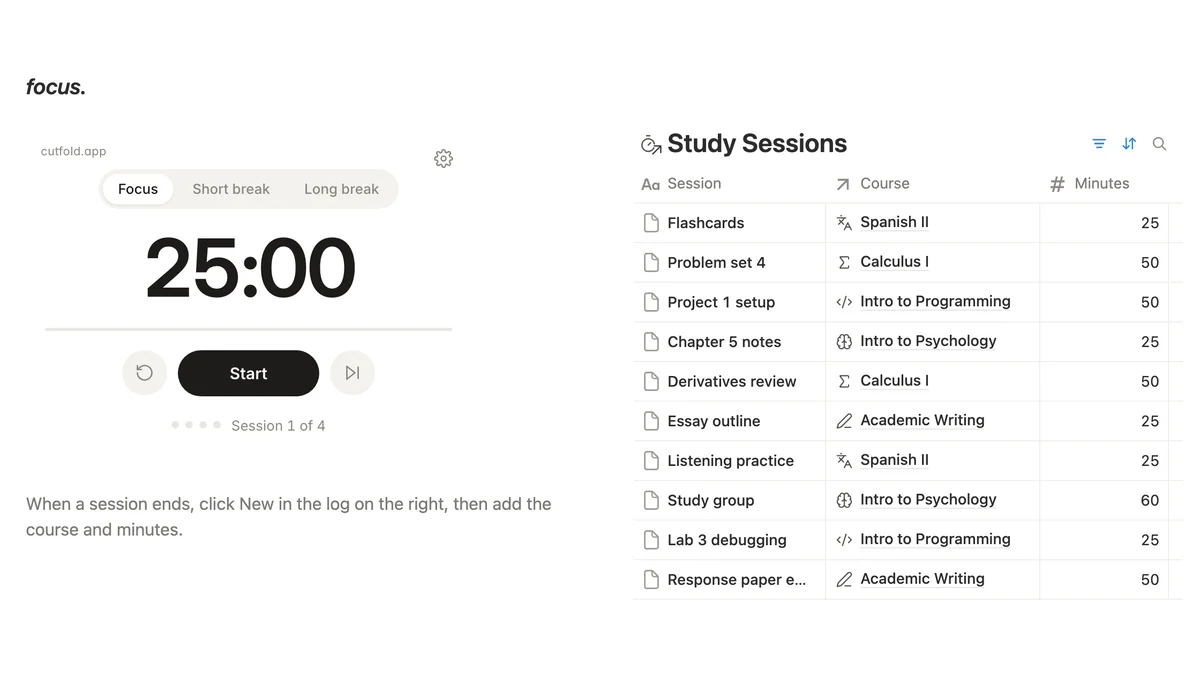
An embed starts at a default height, which can cut off the buttons. Hover over the block and drag its bottom edge down until the whole timer shows, from the mode buttons at the top to the session dots at the bottom. To place it beside something else, drag the block by its handle to the right of another block and Notion makes two columns.
Step 3: set your own lengths
Click the gear in the top right corner of the timer. You can change:
- Focus length (25 minutes by default).
- Short break (5 minutes) and long break (15 minutes).
- How many focus sessions come before a long break (4).
- Whether breaks start by themselves.
- Whether a soft chime plays when the time is up.
Settings are saved in the browser you set them in. The Notion desktop app, the web version and your phone each remember their own.
Lengths in the link
If you want the same lengths everywhere, or you share the page with others, put them in the link instead:
https://cutfold.app/focus?focus=50&short=10&long=20What it does: starts the timer with 50-minute focus sessions, 10-minute short breaks and 20-minute long breaks, whatever the saved settings say. Leave out any part you do not want to change.
Dark mode
If you use Notion in dark mode, add theme=dark so the timer matches:
https://cutfold.app/focus?theme=darkWhat it does: shows the timer in dark colours. To combine it with your lengths, join the parts with &, for example ?theme=dark&focus=50.
How a Pomodoro round works
Press Start and work on one thing until the time is up. When it ends, the timer switches to a short break on its own. After four focus sessions it gives you a long break instead. The dots under the clock show where you are in the round, and the space bar starts or pauses the timer once you have clicked on it.
The point is not the 25 minutes. It is deciding what you will work on before you press Start, and not switching until the break.
Keep a log of your focus time
A timer tells you when to stop. A log tells you where your time went. Create a database called Focus Sessions and rename Name to Session. Add:
- Date: Date.
- Minutes: Number. Type the length of the session, for example 25.
- Project: a Relation to your Projects database (or Courses, if you are a student).
After each session, click New, give it a short name such as "Chapter 3 draft", and fill in the minutes and the project. It takes a few seconds.
Hours per project
In Projects, add a rollup called Focus minutes: Relation set to Focus Sessions, Property set to Minutes, Calculate set to Sum. Then add a formula called Focus hours:
round(prop("Focus minutes") / 6) / 10What it does: turns minutes into hours with one decimal, so 135 minutes shows as 2.3.
Sort Projects by Focus hours and you see at a glance which project gets your time and which one only gets your worry.
Put the timer next to this week's log
On the page with the timer, add a linked view of Focus Sessions with the filter Date is This week, sorted by Date, newest first. Drag it into a column beside the timer. Now you start a session on the left and log it on the right without leaving the page.
What an embed can and cannot do
The timer runs inside its own frame, so it cannot write into your Notion workspace. Logging a session is always a click you make yourself. It does keep correct time when you switch tabs or the page reloads, because it counts towards an end time rather than ticking. On a phone, the chime cannot play while the screen is locked; when you come back, the clock has caught up.